Convert YouTube Videos to Audio Using YT1s Tool
Introduction
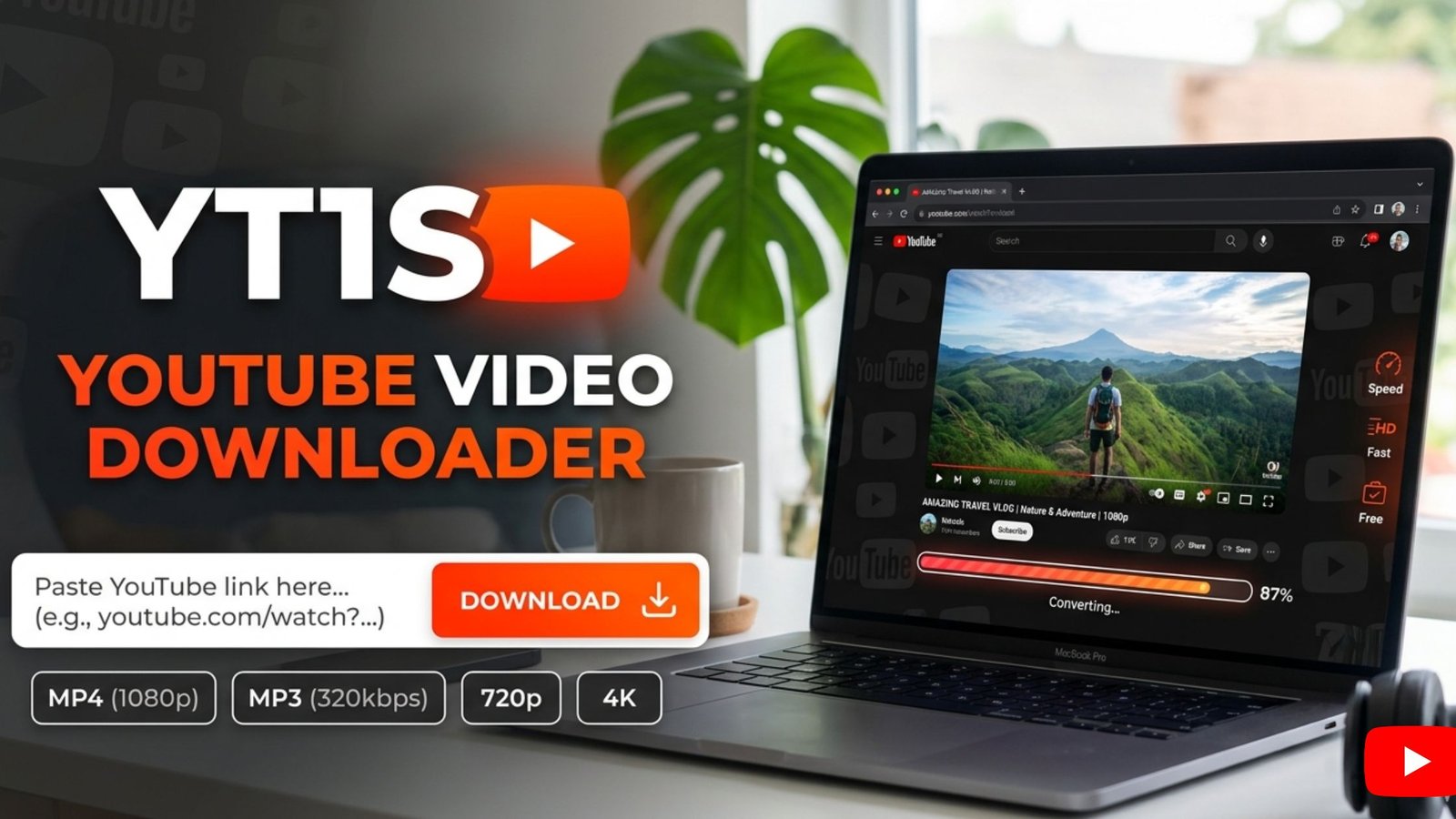
Sometimes you only need the audio from a YouTube video instead of the full video file. It could be a podcast, an interview, a lecture, or a music track that you want to listen to while traveling or working. In those cases, converting a video into an audio file is often the more practical option. YT1s is a browser-based tool that lets users convert YouTube videos into audio formats without installing extra software. It also supports YouTube to mp4 if you decide to keep the video instead. This guide explains how to convert YouTube videos to audio with Yt1s, what to expect during the process, and a few tips that can make things easier for first-time users.
Why Convert a Video to Audio?
Not every video needs to stay in video format. Audio files are usually smaller, making them easier to store and quicker to transfer between devices.
Many people convert videos to audio for reasons like:
- Listening to podcasts without opening a video player
- Saving educational lectures for offline study
- Enjoying music on devices with limited storage
- Playing interviews during a commute or workout
A smaller file also means faster downloads in many cases.
Getting Started with Yt1s
You don’t need to install an application to use Yt1s. Everything happens inside your web browser. Open YouTube and find the video you want to convert. Copy the video link from your browser or use the Share option if you’re on a mobile device. Then visit the YT1s website and paste the copied link into the input field. The tool will analyze the video and display available download formats.
Selecting the Right Audio Format
Here’s the easy part.
- Choose the YouTube to mp3 option if you only want the sound. This format works well for music, speeches, audiobooks, and recorded discussions.
- Some videos may offer different audio quality options. If available, choose the one that matches your storage space and listening preference.
- After making your selection, click the Convert or Download button to continue.
What Happens During the Conversion?
Once the conversion starts, the website prepares your file before generating the download link. This usually takes only a short time, although larger or longer videos may need a little more processing. One common mistake beginners make is refreshing the page too early. Waiting until the conversion finishes normally solves the problem. When the file is ready, click the download button and save it to your preferred folder.
Simple Tips for Better Results
A few small habits can improve your experience.
- Copy the complete YouTube link before pasting it into the converter. Incomplete links sometimes prevent the video from loading correctly.
- Keep enough free storage space on your device. Audio files are smaller than videos, but they still require available space.
- Most people don’t realize this, but giving downloaded files meaningful names makes them much easier to find later.
When MP4 Makes More Sense
Although this guide focuses on audio, there are times when YouTube to mp4 is the better option. Video tutorials, cooking demonstrations, exercise sessions, and presentations often rely on visuals. Saving them as video helps preserve the full experience. If you later decide you need both the picture and sound, you can simply choose the MP4 format instead of MP3.
Final Thoughts
Converting YouTube videos into audio is a simple process with Yt1s. Whether you’re saving a lecture, podcast, or favorite music track, the tool provides an easy way to create YouTube to mp3 files directly from your browser. It also offers YouTube to mp4 downloads when you want to keep the complete video.
Take a moment to check the copied link, choose the format that fits your needs, and wait for the conversion to finish before downloading. These small steps help make the process smooth from start to finish.




Post Comment