How to Stop Apps from Opening on Startup on Mac
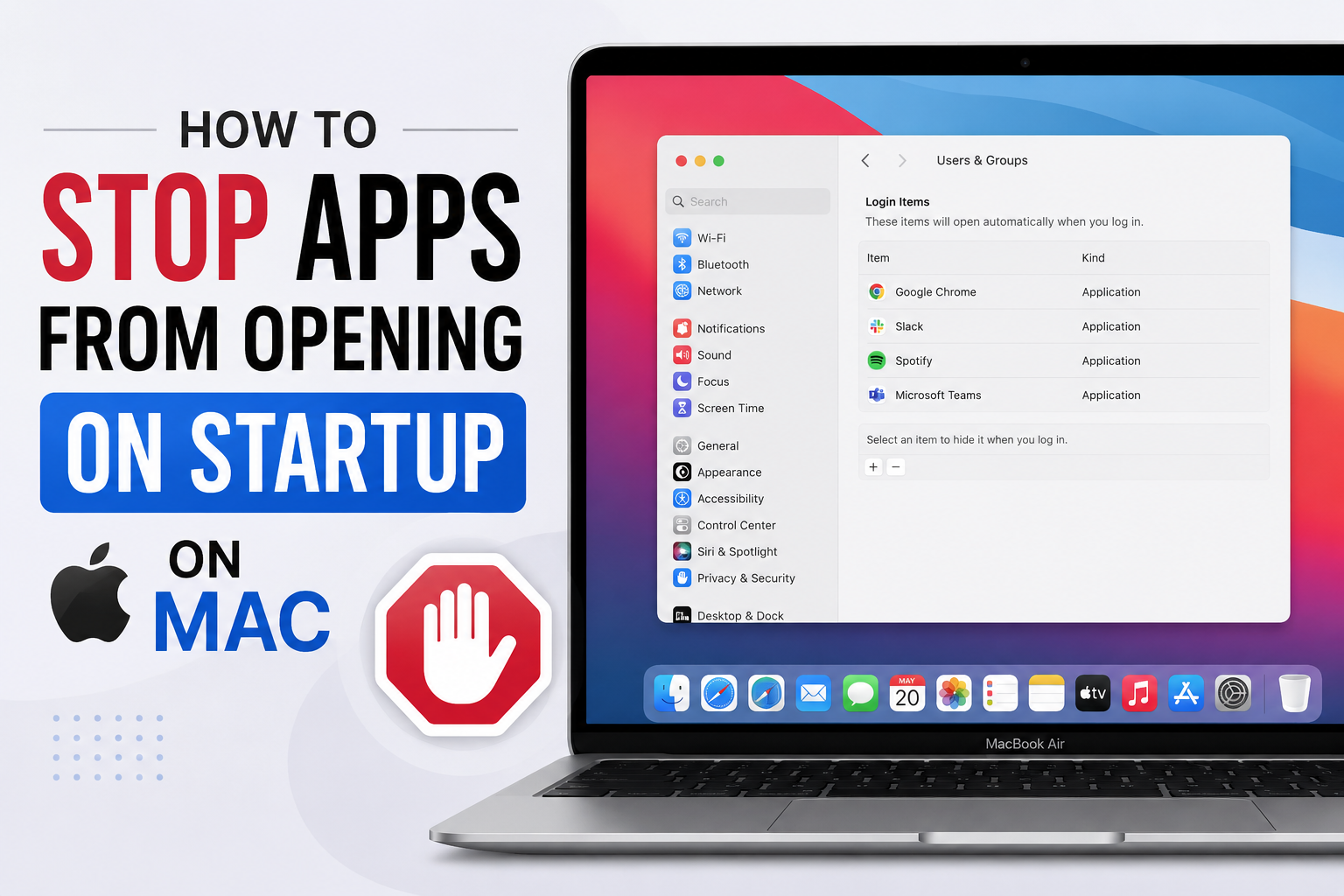
There is nothing that irritates one more than powering on his Mac and expecting to be right away immersed in active work when instead he sits down and waits while his computer loads.
In the meantime, all kinds of mess gets opened on your screen, namely communication applications, browser add-ons, and utility services from the cloud storage providers. Every time you use another app, you give it the right to start working as soon as you log into your account.
Luckily, getting rid of this nuisance is easy. By cutting back your unwanted startup apps Mac, you can improve the speed of your computer’s performance after it starts, conserve its power, and make your screen neat. Let’s talk about the simplest solutions to the problem.
The Main Control Center: System Settings
Recent editions of macOS have put all your control buttons for startup configuration in one central menu. Should you feel weary of having too many automatic launches of applications, your key solution comes with adjusting your system preferences accordingly.
Understanding how to stop apps from opening on startup Mac starts off with a brief dive into the system settings interface:
- Access Your System Preferences: Simply click on the tiny apple symbol sitting in the upper left corner of your monitor and select “System Settings.”
- Choose the Correct Tab: Check out the left-hand column of options and click on “General.”
- Go Into Login Items: Within the center panel, click “Login Items,” where you will find the comprehensive list of allowed software that opens automatically upon startup.
- Delete Those Annoying Apps: Within the “Open at Login” section, locate your chosen application, then highlight it and press the minus (-) sign located at the bottom of the list.
Control of Background Process Management
As you explore the options available under Login Items, you will most probably come across a second category below called “Allow in the Background.”
Here, all the small helper utilities, update monitoring programs, and synchronization programs operate quietly without ever displaying a proper window interface.
Although cloud backup programs may be useful, there are a number of other software programs that leave behind unnecessary update trackers that keep functioning. However, you are allowed to move the toggles off to the “off” position without worrying about any loss.
The Dock Shortcut Approach
The whole configuration process is as easy as clicking around in your primary application dock located at the bottom of your screen.
- Find the icon of the pesky app that is currently running on your dock.
- Use right-click (or alternatively press the Control key and left-click) to bring out the hidden menu of actions.
- Place your cursor on “Options.”
- Select “Open at Login” and deselect it by clicking on it.
Just five minutes spent checking these settings will make sure that your Mac boots up when you want it to and uses only the applications required to perform that particular task.
Conclusion
Simply by auditing what applications you have running in the background, you can dramatically improve boot times and take complete control over your Mac. Datarecovee is a website that you can refer to when you want to access extra details on apps on your Mac device.







Post Comment