Step-by-Step: Scraping Google Maps with Outscraper for Lead Generation
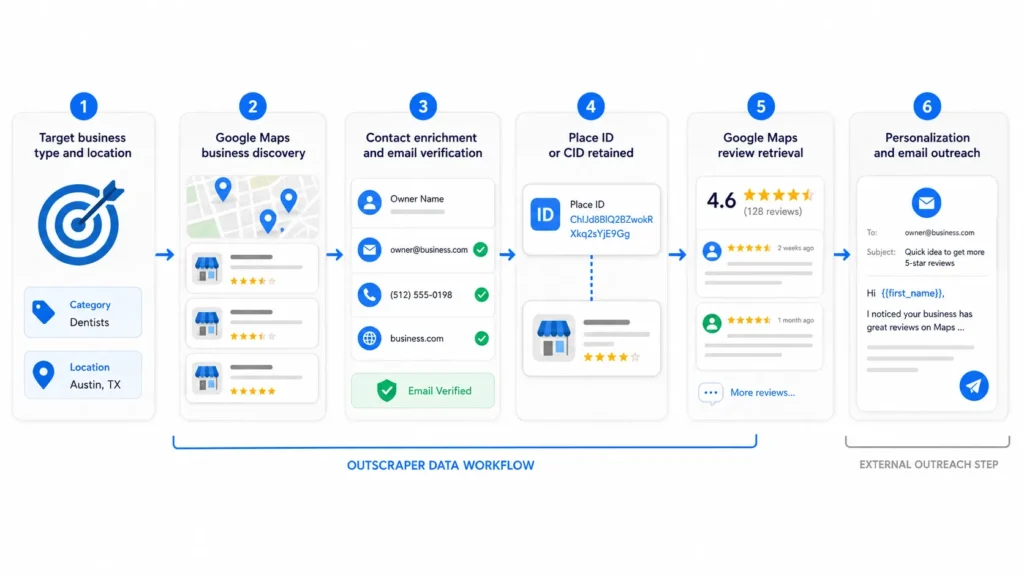
Finding accurate, up-to-date business information used to mean hours of manual searching, copying details from one listing at a time, and hoping the phone numbers were still correct. Google Maps holds an enormous amount of that information already, from business names and addresses to reviews, categories, and contact details, but pulling it out at scale has always been the hard part. Outscraper Google Maps Scraper was built specifically to solve that problem, turning what used to be a tedious manual task into a process that takes minutes instead of days. This article walks through how the tool works, what kind of data it returns, and how different teams put it to use in their day-to-day workflows.
Manual Research vs. Automated Extraction
Manually researching even a hundred local businesses, one listing at a time, can easily consume an entire workday once you factor in copying details, checking websites for emails, and organizing everything into a spreadsheet. Automated extraction compresses that same task into minutes, freeing up time for the actual outreach or analysis work that the data was collected for in the first place. Beyond the time savings, automated data collection also tends to be more consistent than manual research, since every record is pulled using the same fields and structure. Manual research is prone to inconsistent formatting, missed listings, and simple human error, especially when a team member is trying to move quickly through a long list of businesses.
Choosing the Right Tool
Choosing the right tool for pulling business data ultimately comes down to how well it balances speed, accuracy, and ease of use. A tool that’s fast but produces messy or outdated data isn’t actually saving time once someone has to clean it up manually afterward. For teams that regularly need fresh local business data, whether for sales, marketing, research, or partnership development, having a reliable extraction process in place removes one of the most tedious parts of the job and lets the team focus on what to do with the information once it’s in hand.
Running Your First Search
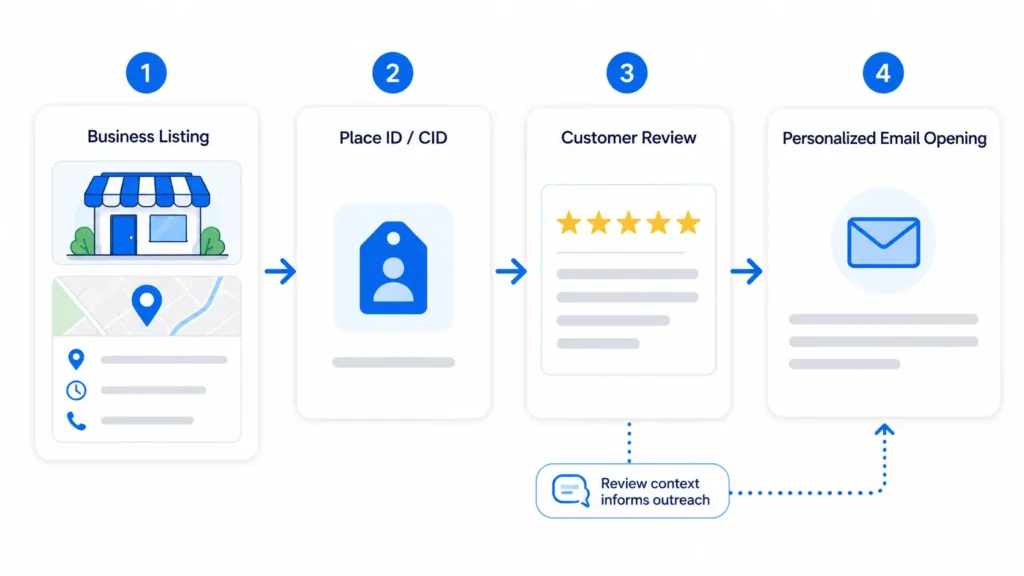
Getting started typically involves entering a search term, such as a business category combined with a city or zip code, and letting the tool pull every matching listing within that scope. Once the search runs, results can be filtered, sorted, and exported directly to CSV or Excel, making it easy to hand the file off to a sales team or import it into another platform. New users often start with a small test search to get a feel for the output format before running larger extractions across multiple cities or categories. This approach helps confirm that the data fields returned match what’s actually needed for the project, whether that’s just names and phone numbers or a fuller dataset including websites and review counts. It’s a capability that Outscraper Google Maps Scraper handles particularly well.
The Data Fields You Can Export
Beyond the basics of name, address, and phone number, exports can include website URLs, business categories, star ratings, total review counts, and sometimes email addresses pulled from linked websites. Each of these fields serves a different purpose: ratings and review counts help prioritize which leads are most established, while categories make it easy to segment a list by industry before starting outreach. Having structured fields rather than raw text makes filtering and sorting dramatically easier. A sales team might want only businesses with fewer than fifty reviews, since these are often newer or under-marketed and more receptive to outreach, while a market researcher might care more about geographic density than review counts at all.
Importing Data into Your Workflow
Because exports come in standard CSV or Excel formats, importing them into a CRM, email platform, or spreadsheet-based workflow is usually straightforward. Most CRMs accept bulk CSV imports with field mapping, so a business name column maps to a company field, a phone number column maps to a contact field, and so on. Teams running cold outreach campaigns often pair this kind of exported data with an email finder or verification step before uploading contacts into their outreach platform, ensuring that the list going into a campaign is both accurate and properly formatted for whatever sequencing tool they’re using. Whether the goal is building a cold outreach list, researching a new market, or simply keeping a CRM up to date, the ability to pull structured data straight from Google Maps saves time that would otherwise go into manual research.






Post Comment